
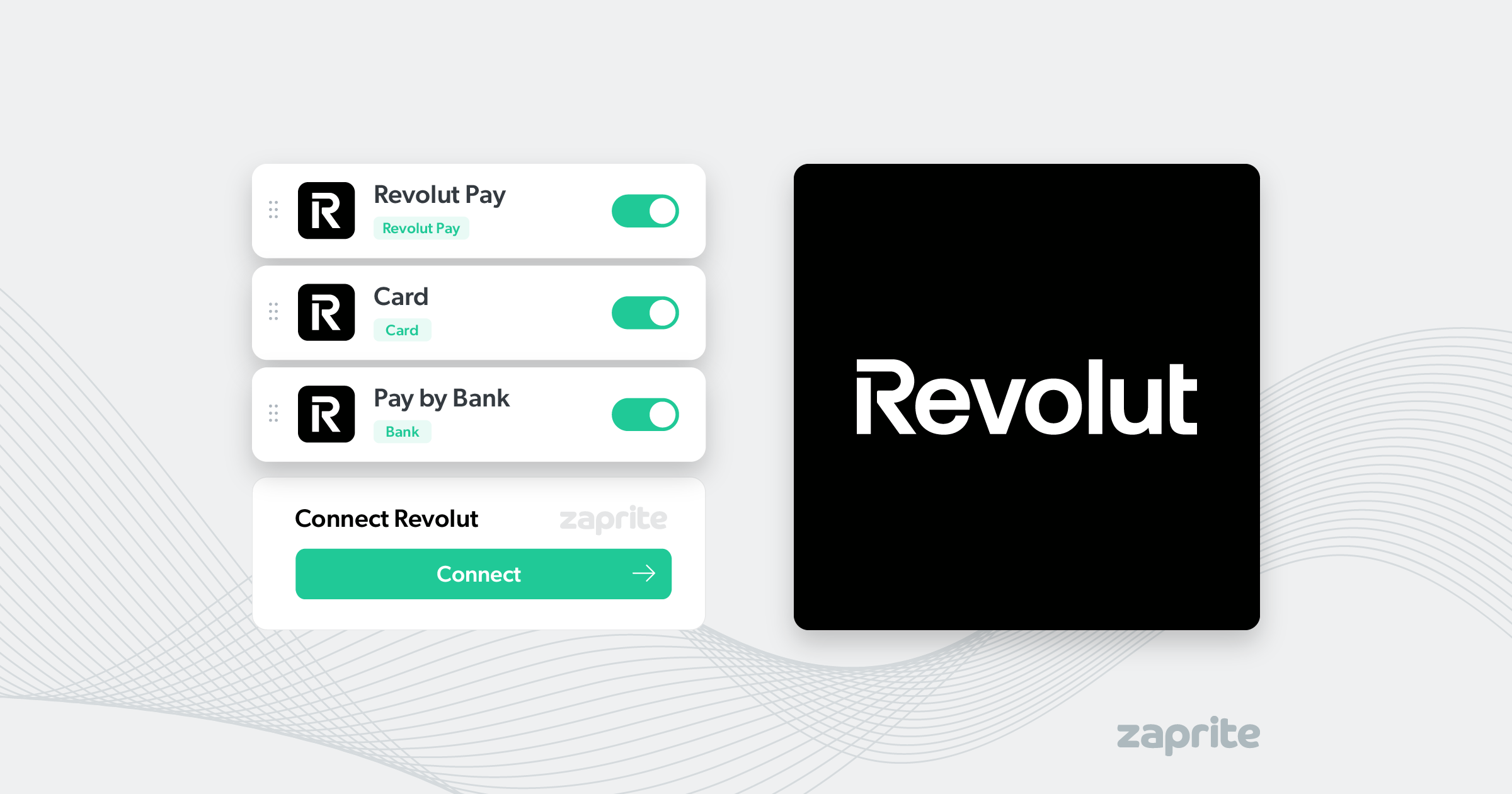
With Zaprite, you can connect a Revolut Business account in order to accept payments on your Zaprite hosted Checkouts via your Revolut payment methods.
Connect your Revolut Business account
The following is a short guide on how you can connect your Revolut Business account to Zaprite to enable Card, Pay by Bank and Revolut Pay options on your Zaprite Checkouts.
Step 1: Activate Revolut Connection
The first step is to activate the Revolut connection. Simply visit the Connections tab and click the ‘Connect’ link under the Revolut card.
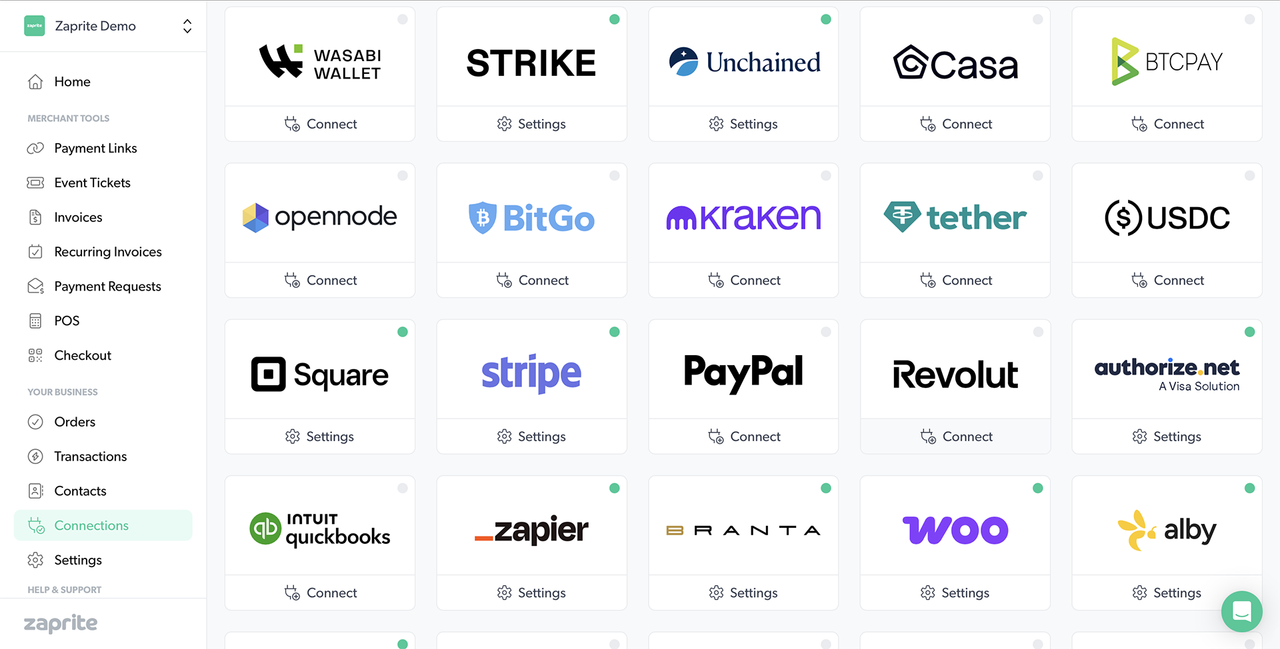
Once activated, you will be brought to the ‘Connect’ screen to start your connection.
Step 2: Copy your Revolut API Keys
The next step involves logging into your Revolut Business account to copy your API Keys.
In a new browser tab, login to your Revolut Business dashboard, click Settings > API Keys, and then the Merchant API tab. You’ll find your two required keys listed at the bottom of the screen:
- Production API Secret key
- Production API Public key
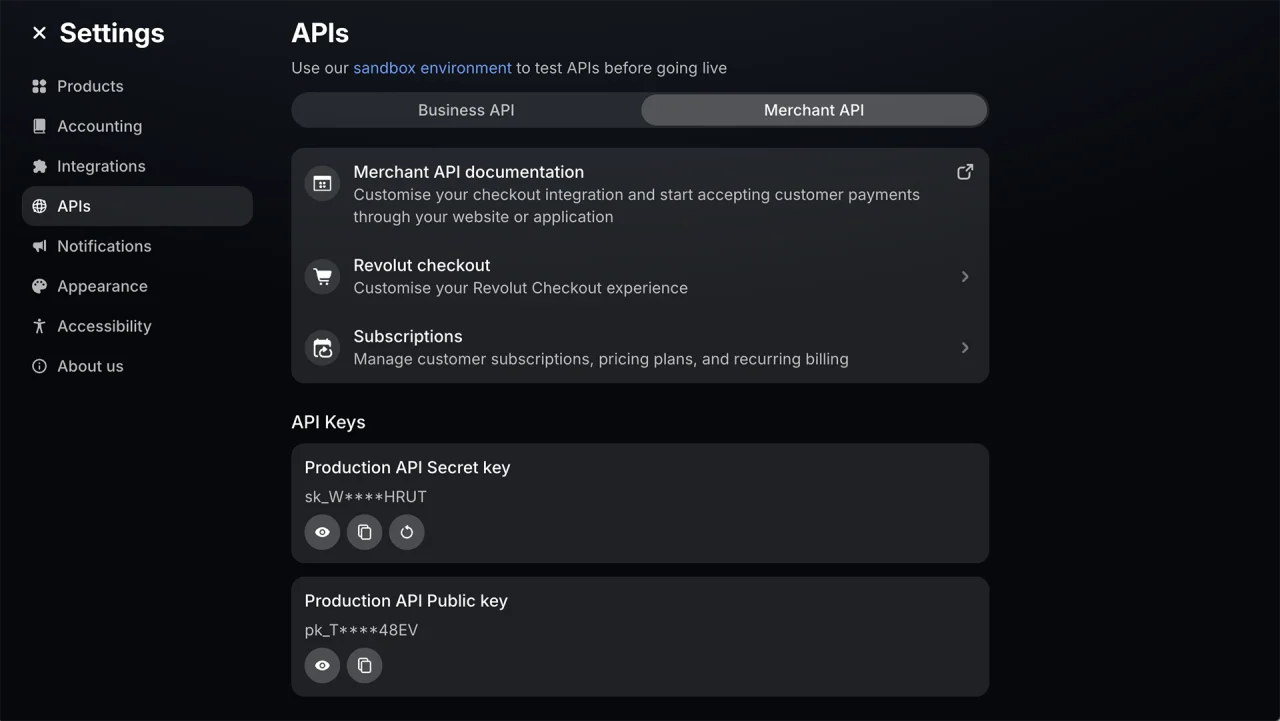
You’ll need to copy these keys one by one so keep this tab open head back over to your Zaprite dashboard.
Step 3: Connect your account
Paste your Merchant API keys one by one into the associated fields on the Revolut connection screen.
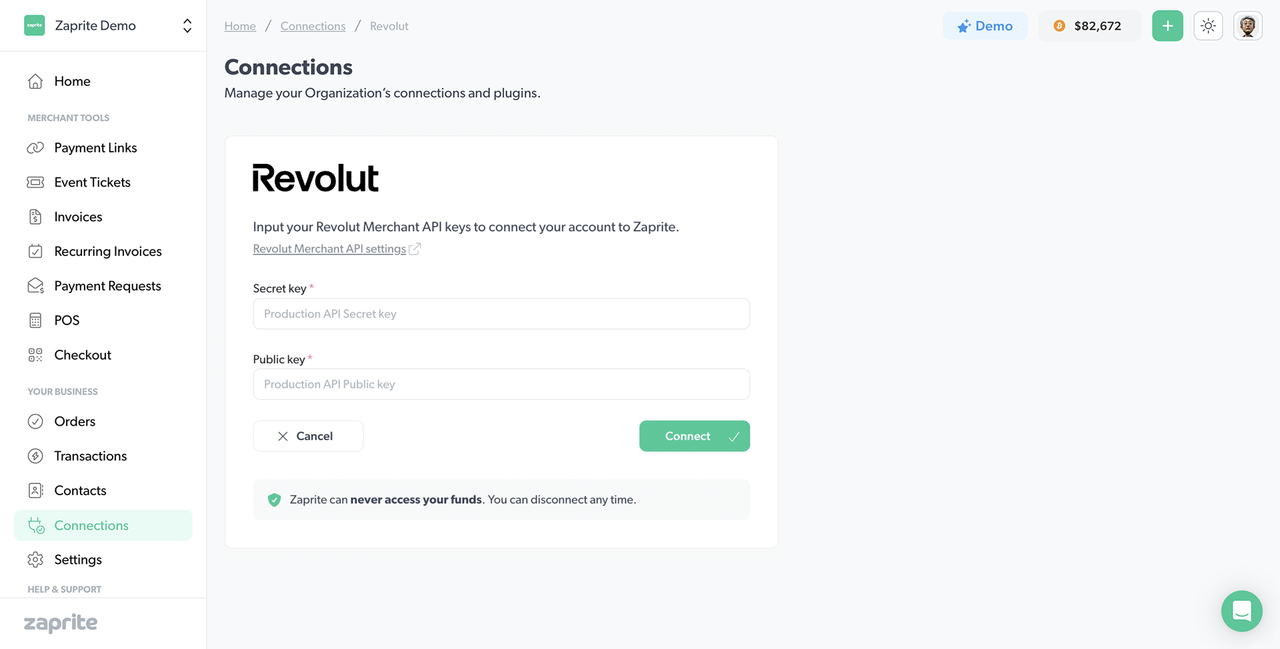
Note: Make sure you paste the correct Secret or Public key into each corresponding field.
Make sure you check the box to agree to the terms, then click Connect.
If you want to disconnect your Revolut account, you can simply click the Disconnect button and your Revolut connection details will be removed from our database. You can reconnect at any time.
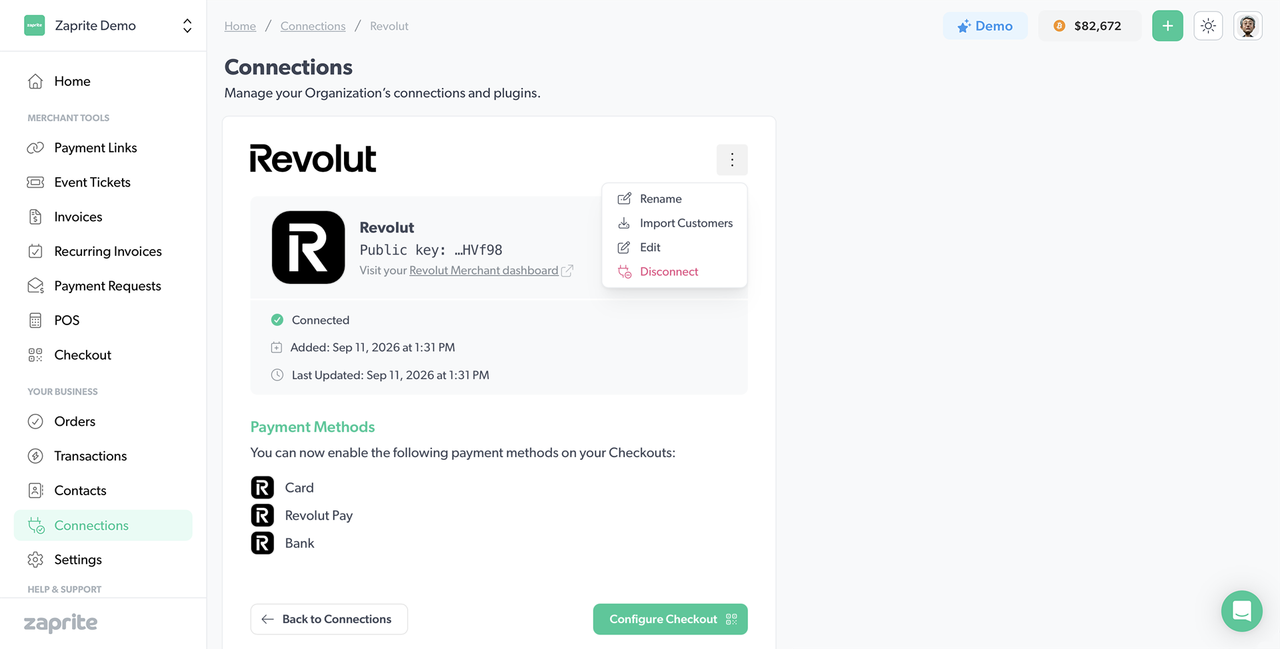
Step 4: Enable Revolut on Checkouts
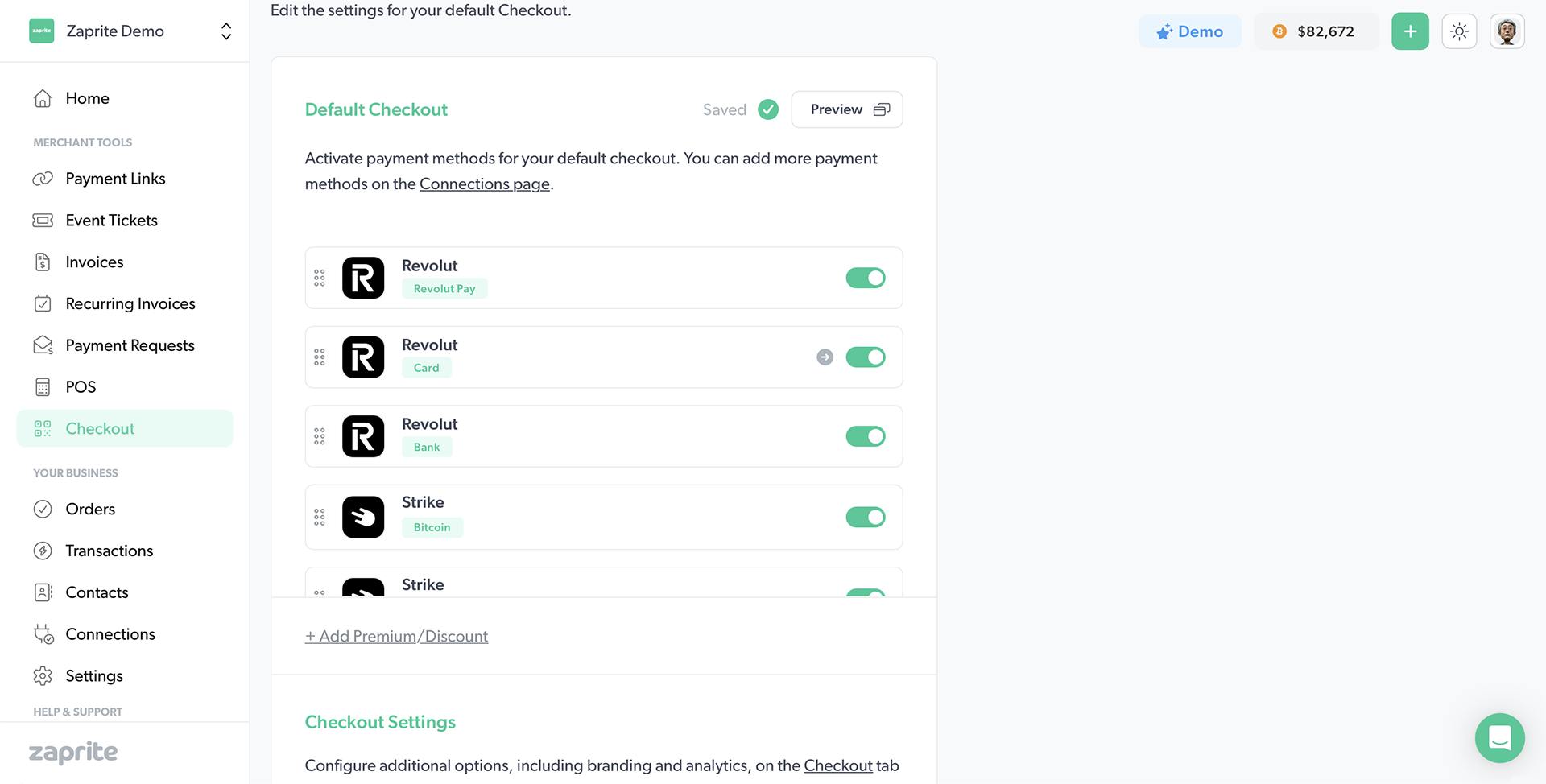
Now you are free to enable Revolut payment methods on Checkouts for Invoices, Payment Links, Event Tickets, Virtual POS Terminals and API Orders. Simply click the toggle on the Checkout section to allow your customer to pay with Card, Pay by Bank or Revolut Pay, with funds deposited straight into your Revolut account.
The Checkout tab in the main navigation includes similar toggles for enabling Revolut payment methods on your default Checkout.
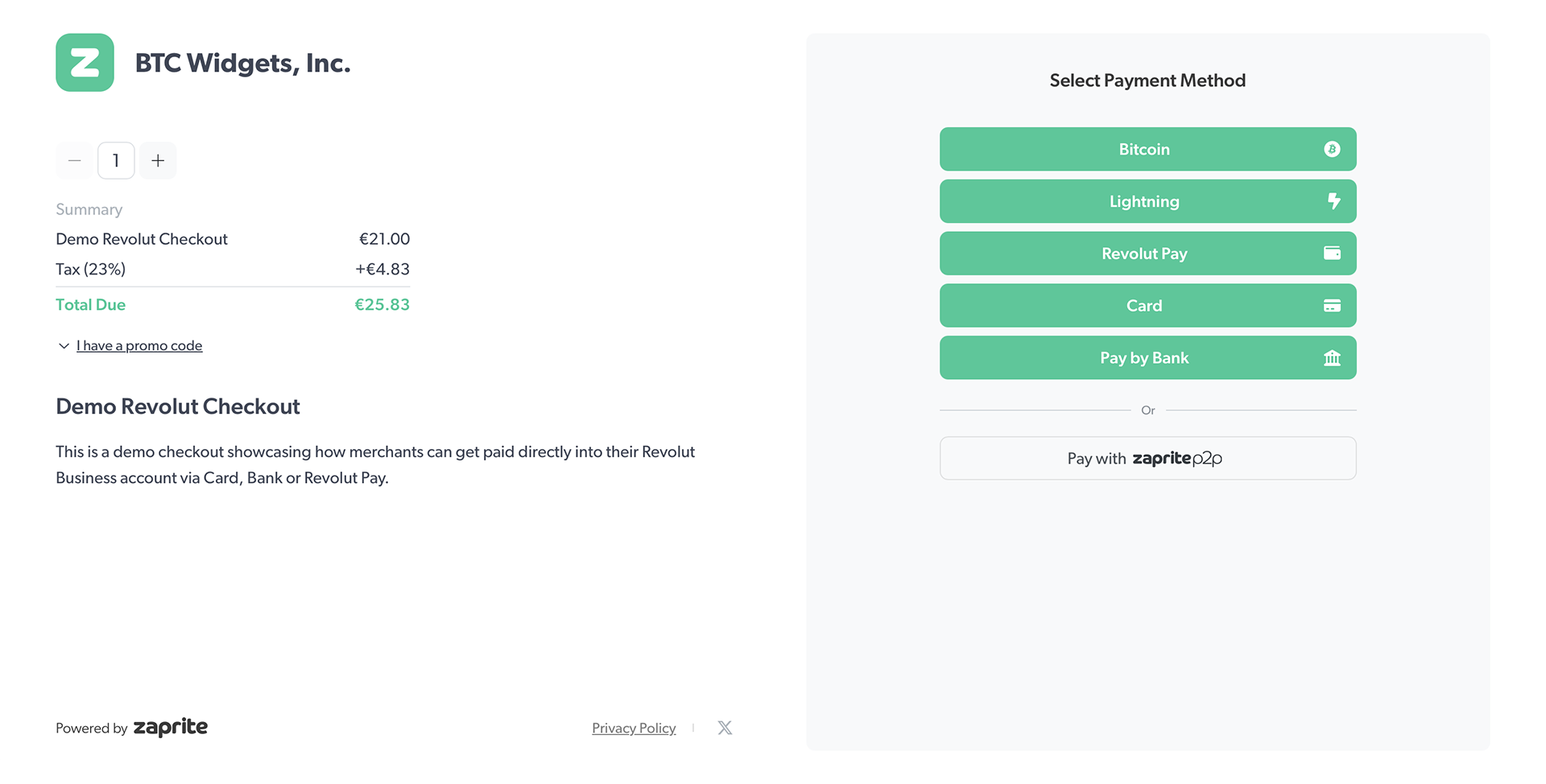
Your customer will now see your enabled Revolut payment options on your Zaprite hosted Checkout pages.
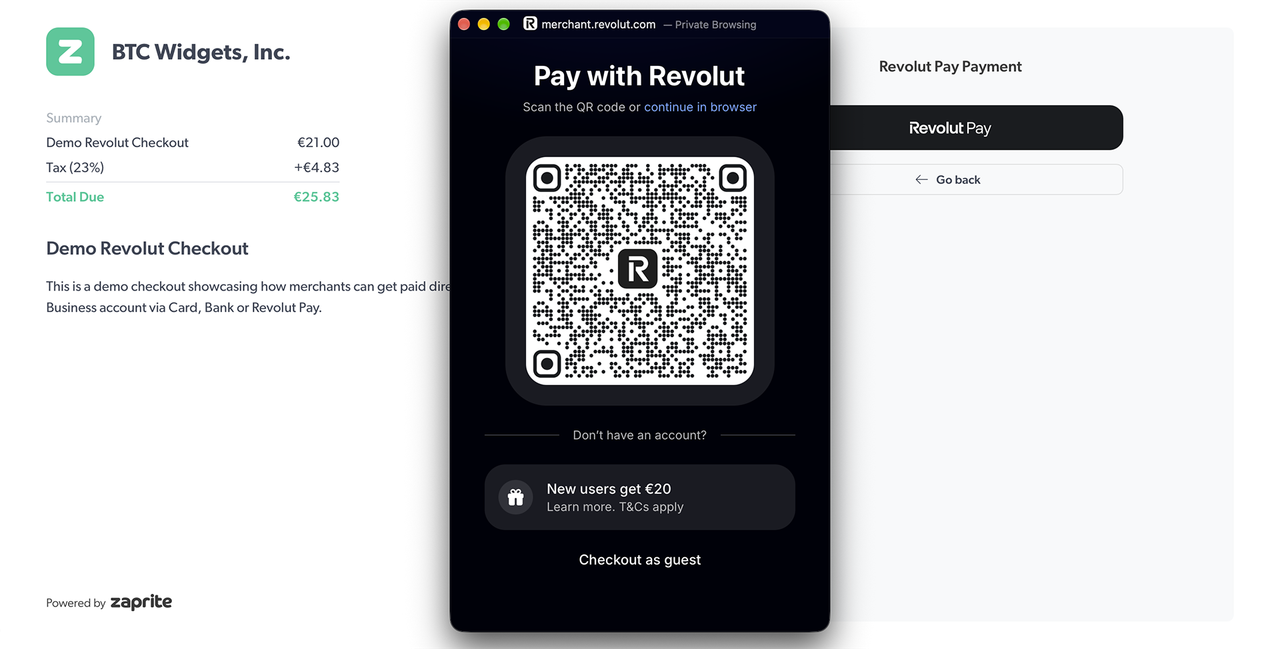
Your Revolut Business account is now connected to Zaprite. When customers are paying a Zaprite Checkout .
Help & Support
If you run into any issues connecting your Revolut account, or have general questions about using Zaprite, feel free to reach out at https://help.zaprite.com.